Overview
Just because the bus is on the road, doesn't mean everything is going according to plan. Delays happen that disrupt your ability to pick up your passengers on time, or at all. This feature allows you to update your passengers immediately when unforeseen events occur, and handle communication and cancellations efficiently and effectively.
 |
Disruptions are available for Transportation (P2P) activities only at this time. They are designed for last-minute schedule changes and urgent booking adjustments. If advanced notice about scheduled changes is available, we recommend using the currently available options such as adjusting available pick-up/dropoff locations in the activity set up page. |
Users can choose from 2 general types of disruptions - Time Delay OR Closures.
- Time Delay - Traffic Delays, Detours, Traffic Accidents, Vehicle Breakdowns
- Closure - Construction, Emergencies, Natural Disasters, Rerouting
Users can disrupt a single location, all locations, or a range of locations along the route of a single transportation service according to the situation.
This article will cover the following topics:
- Getting Started with Service Disruptions
- How to Apply a Time Delay
- How to Close a Stop or Range of Stops
- Sending Email/SMS Notifications to Impacted Customers
Getting Started with Service Disruptions
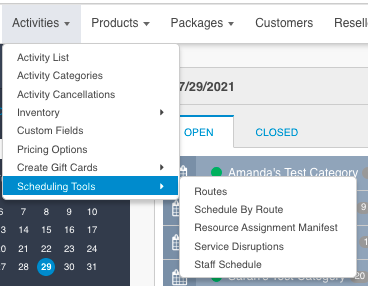
- Service Disruptions can be accessed in Zaui Core (back office) by navigating to Activities > Scheduling Tools > Service Disruptions.
- Once you're in the Service Disruptions view, click on Create Disruption from the shortcuts panel. You will have the option to create a time delay or closure disruption.
- Once a disruption is saved, it cannot be edited. The Zaui system will inform you of the number of bookings that will be impacted by the disruption. Once saved, bookings are updated automatically if impacted.
How to Apply Time Delays
Use the service disruptions feature to communicate to your customers an updated estimated pick-up time and inform last-minute online bookings about changes to your schedule due to time delays.
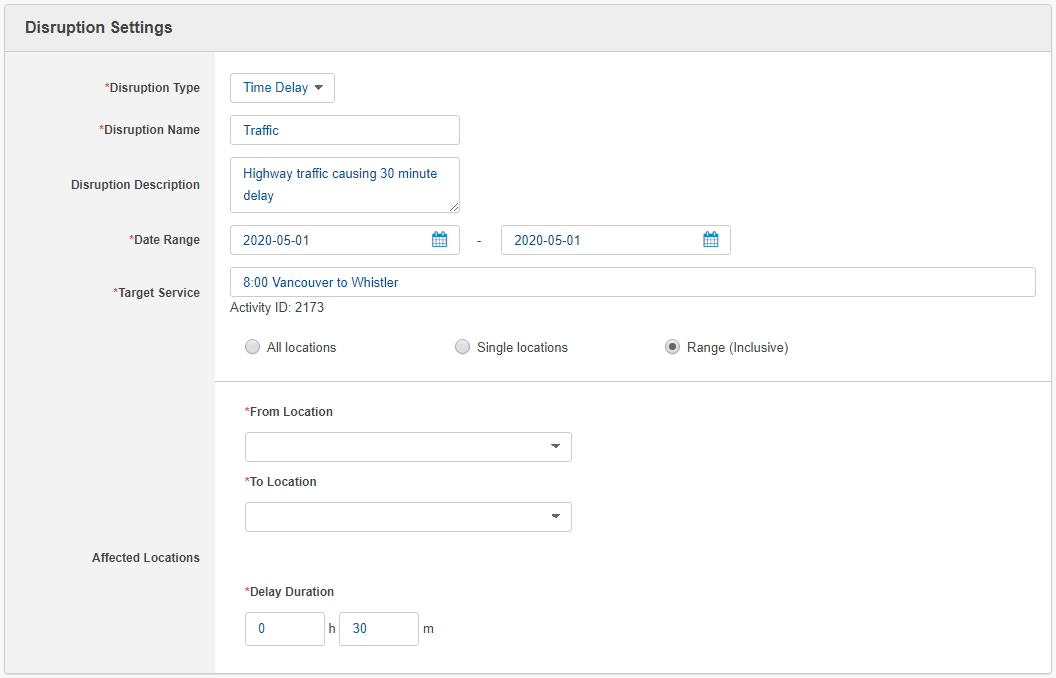
- Select Time Delay from the Disruption Type drop-down.
- Label the disruption and provide a description of it. This information will be included on the list of your disruptions for internal communication so your teams are always up-to-date.
- Select a single day or a range of dates that will be impacted by the delay.
- Select your target service. The generated list will populate the name of your Point to Point activities, ie - 11:00 Whistler to Vancouver.
- After selecting the activity, choose either all locations, a single location, or a range of locations that will be delayed.
- All Locations - Includes all pick-up locations listed in the pick-up zones in the activity configuration.
- Single Location - Select one pick-up location listed in the activity, ie - Whistler Village Bus Loop.
- Range (Inclusive) - Select a span of locations affected by a time delay at an earlier location An example scenario could be, delays leaving downtown Vancouver, all pick-up locations along the Sea-to-Sky highway will be further delayed.
- Once you've configured your target service and locations, select Save at the top. Zaui will let you know how many bookings will be impacted by the delay.
- With the time delay in place, all impacted bookings will reflect the new pick-up/dropoff time on the booking itinerary and you can notify your customers. Your booking engine will also reflect the adjusted time of the impacted service immediately.
How to Close a Stop or Range of Stops
Stop closures can be caused by natural occurrences such as landslides or perhaps a scheduled road enhancement. These instances can prevent a transportation service from reaching particular stops along a route. Use the service disruptions feature to quickly and easily remove bookings on stops that you cannot service temporarily, prevent new bookings while the stop is unavailable, and spend time doing what's important: helping your customers rebook.
To close a stop or range of stops:
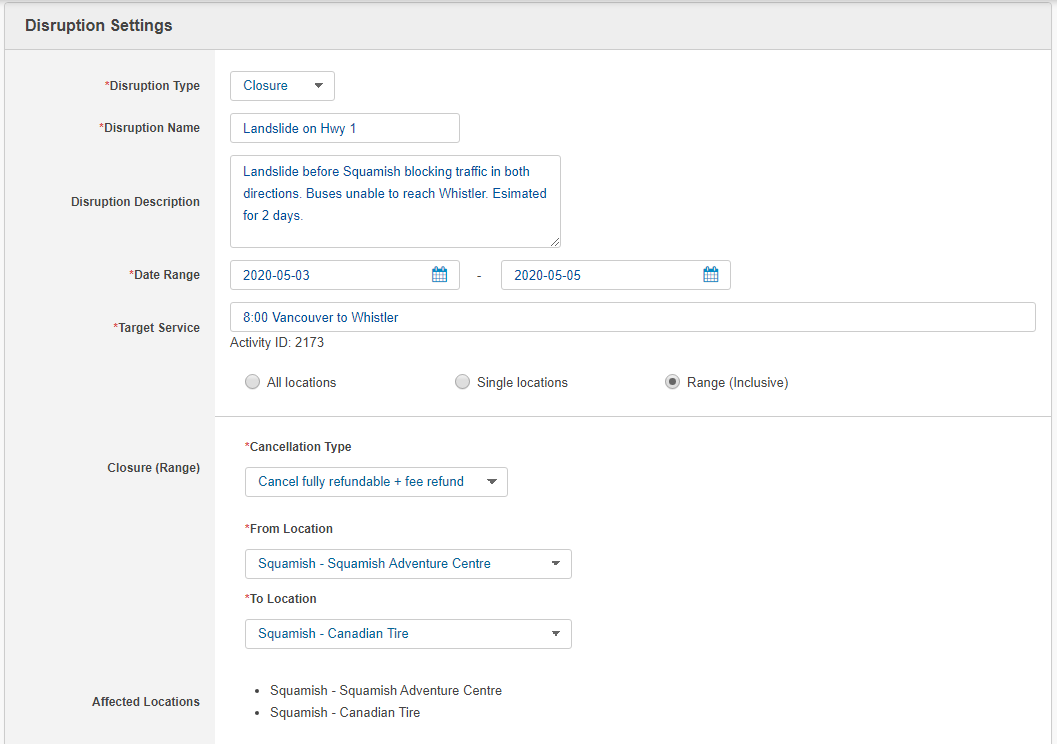
- Select Closure from the Disruption Type drop-down.
- Label the disruption and write a description of it. This information will be included on the list of your disruptions.
- Select the date range. the date range can be for a single date or a range of dates.
- After selecting the activity, choose either all locations, a single location, or a range of locations that will be delayed.
- All Locations - Includes all pick-up locations included in the pick-up zones in the activity configuration.
- Single Location - Select one pick-up location listed in the activity, ie - Whistler Village Bus Loop.
- Range (Inclusive) - Select a span of locations affected by a time delay at an earlier location An example scenario could be, delays leaving downtown Vancouver, all pick-up locations along the Sea-to-Sky highway will be further delayed.
- Select your cancellation type
- No Cancel - Impacted bookings are not cancelled.
- Cancel with Full Credit - Impacted bookings are cancelled and payment for the cancelled route is applied as a refund to credit on account for that customer. Credit can be used towards another booking in the future. Option available to refund the booking fee as well (credit card surcharge). More information on providing customer credit for future use can be found here.
- Cancel Fully Refundable - Impacted bookings are cancelled and payment for the cancelled route is applied as a refund to credit. The status within the customer profile will indicate if the booking is eligible for a full refund. Option available to fully refund the booking fee (credit card surcharge).
- Once the target service and cancellation type are selected, click Save. Zaui will let you know how many bookings will be impacted by the closure.
- Impacted bookings will be updated immediately based on the Cancellation Type.
- If a booking has only a single service, the booking will be cancelled (if selected).
- If a booking has more than one service, such as a round-trip booking, only the impacted service will be removed and credited to the customer.
- In all cases, impacted bookings will have a note added in the Historical Notes. Notify the impacted customers about the closure and indicate how they can contact you to rebook.
- For online bookings, closed stops will not be bookable for the duration of the stop closure.
Sending Email/SMS Notifications
Once the disruption is in place, communicate to your impacted customers with a templated email or SMS notification. Don't have a template created? Send a custom alert easily from the notifier.
- Click on List Disruptions from the shortcuts panel.
- Select the recently created disruption from the disruptions list.
- Click on Notify.
- Choose either a custom alert or a pre-configured notification. For more information on our customer notifications, check out this article.
- To send SMS notifications to customers, integration with Twilio is required. Sign-up for Twilio here.
- Select the recipients to receive the notifications and click Send.
- If you would like to see which customers have received notifications, click View Notification History.
|
It's important to communicate to your customer what to do if their stop is closed or the bus won't reach them. Include information on the type of cancellation (where they are eligible for a refund or a rebooking credit) as well as how to contact your team for help rebooking. |