Defining Point to Point Activities
 |
Point to Point Activities: A transportation service that takes passengers on a scheduled route of points. Ex. Airport Shuttle, Ferry Service, City to City Transportation |
Overview
Before learning how to set up a Point to Point activity, please make sure you have completed the following:
- Create Activity Categories
- Create Taxes/Fees
- Create Pricing Table
- Create Inventory/Equipment
- Setting up Pickup Locations, Cities and Zones
This article will cover the following topics:
- Where do I go to create a new activity?
- Activity Name/Date Information
- Internet Booking Configuration
- Activity Notes and Restrictions
- Pricing Information
- Taxation Information
- Capacity and Inventory Assignment
- Pickup/Dropoff Locations
- Activity Description
- Tips
Where do I go to create a new activity?
- From the navigation bar, select Activity > Activity List.
- Click on the Activity type you wish to create from the shortcuts panel (in this case, select Point to Point).
- You will be brought to your Basic Settings tab, which is where the majority of your configuration occurs.

Activity Name/Date Information
As soon as you have saved your new activity, the system will auto-generate a unique Activity ID which is useful for differentiating between similarly-named activities. The Activity ID will also need to be provided for OTA connections.
 |
The way you name your Point to Point activity is very important. Make sure you include the departure time and the direction in the name. For example, 9:00 AM NYC to JFK. |
- Enter a Name for your activity.
- Select a Category Name (which should have previously been created).
- Enter the Activity Location (where does this activity take place).
- Insert an Image and Image Caption to display on your online booking engine. The Zaui online booking engine is image-heavy, so you want to ensure you upload high-resolution images.
- Set the Start Date and End Date.
- Select which days of the week this activity will be offered by ticking the appropriate boxes beside Days Available.
- Set the Activity Time and Days.
- Enter the Activity Duration.
- By selecting Includes Meal, customers will be prompted to select a lunch when making a booking.
|
Image file size must be less than 781.25 KB, at least 765px x 430px and must be .jpg / .jpeg |
Internet Booking Configuration
Check the Publish to Internet? flag if you wish to allow this activity to be booked on the online booking engine.
For the passenger types settings, you can customize which are enabled and redefine them if needed. If you leave the User Defined field blank, the system will use the default definitions.
Keep in mind that the customization you make here is specific to this activity. To customize your passenger types system-wide, check out this article.
The Advanced Settings tab allows further customization.
Activity online booking threshold time within Advanced Settings allows you to configure a minimum time limit (for example, if you put in 24, this means customers cannot book within 24 hours of the activity), as well as for a maximum time limit (for example, if you put in 72, the online booking engine will only show options until 72 hours into the future).
|
Keep in mind the threshold times entered here are specific to this activity. If your threshold settings will be the same across all of your same-type activities, you can configure those system-wide under your Portal Settings. Check out this article for more information on setting system-wide thresholds. |
The Activity Web Sort Priority box allows you to organize the order in which each of your activities will display, both online and in Zaui Core (back office). However, please note this feature does not work when using the Shuttle Panel functionality in Zaui.
Activity Notes and Restrictions
This section is where you can attach any Activity Notes/Restrictions that you have created.
To create Activity Notes/Restrictions,
- From the navigation bar, select Settings > Online Booking > Notes & Restrictions.
- Click on Create Note/Restriction on the shortcuts panel.
- Note that the text field is limited to 100 character counts.
- Click on Save.
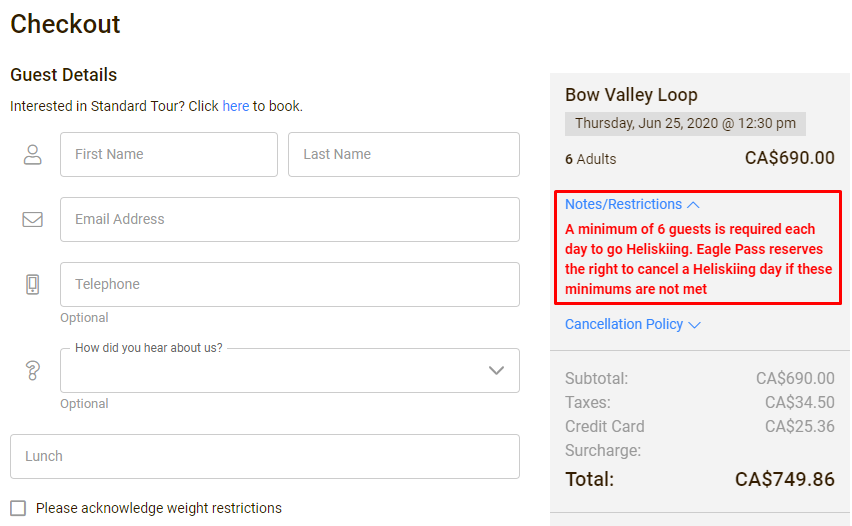
- These notes will be displayed on the activity and checkout pages of the online booking engine, as seen below.

Pricing Information
This section is where you will attach the price codes to your activity. Check out this article for step-by-step instructions on how to set up your point to point pricing table.
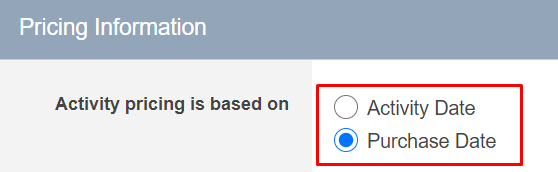
This section is also where you can add price codes that are either based on the Activity Date or the Purchase Date. For example, you would like to offer a cheaper price for bookings made from November 2020 to March 2021 for your April-June 2021 tours, and a regular price for bookings made during your operating season. For this example, make sure you base your activity price on the Purchase Date.
Taxation Information
Only taxes that have been previously created will be listed in this section. Check out this article for information on how to create taxes/fees.
Enabling When booking this activity apply all per person per day charges will apply the tax per person, per day for Rental or Multi-Day activities. This flag needs to be enabled in conjunction with the Per Person Per Day taxes mentioned in this article.
Capacity and Inventory Assignment
This section is where you will attach equipment or set the capacity for your activity. Please check out this article for information on how to create and assign capacity/inventory onto each different type of activity.
Pickup/Drop-off Locations
This is where you will set the pickup and drop-off locations for this particular point to point activity.
- Enable guests to select pickups for online bookings
- Set your Start and End Dates based on the travel dates.
|
The system will warn you if there is no valid pick-up and drop off locations for the current date, but ignore this message if your travel dates are well in the future |
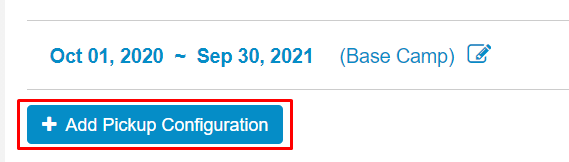
If you offer different pickup and drop-off locations seasonally (for example, one of your services is only offered in the summertime) you can create multiple date ranges by clicking on Add Pickup Configuration and customizing the start and end dates accordingly.
Select the Pickup Zone which you would have previously created. Check this article out for more information on creating Zones.
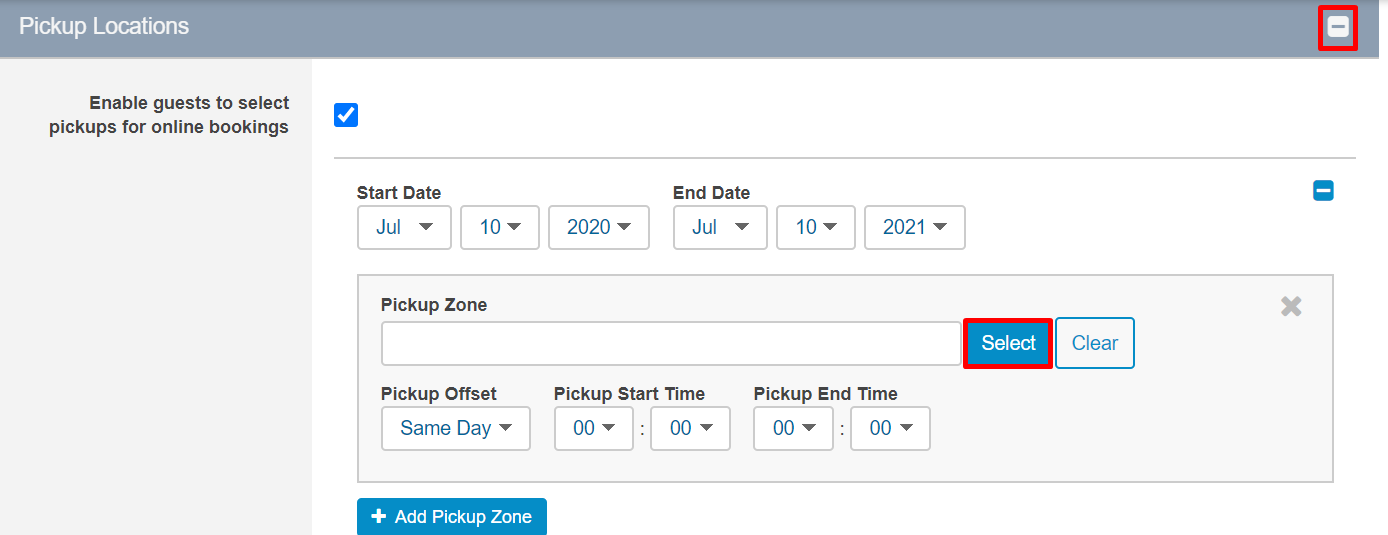
Pickup Offset Start and End Times are the window of times in which the pickup will occur. Because the number of pickups and stops vary, it's better to give a window of time to your customers than promise a specific time that cannot be met.
For example, if your route leaves at 9:00, and you have 2 pick-up Zones, this is what it might look like:
- Zone A - with offset 8:35 - 8:45
- Zone B - with offset 8:50 - 8:55
In doing this, the system will do the following automatically for you:
- Generate offset times prior to picking up for your staff to quote over the phone at the time of booking.
- At the time of online booking, represent departure times with the offset times taken into consideration.
- Indicate on guest itineraries the estimated time to be ready for pickup.
You can add as many Pickup Configurations and Zones as necessary.
Follow the same steps for Drop off Locations as you did for Pickup Locations.
Tour Locations Order allows you to set the exact order for pickups and tells the system that you will pick up only in this particular order.
Once this has been established, the wizard engineers at Zaui have built an automatic feature into the software that is called Point Capacity Calculation.
Point Capacity Calculations are what the system does to determine the exact inventory levels at any one location along a route. Using an example of Locations A, B, C, and D, with a capacity of 24, we might have something like this.
| A to | B to | C to | D |
| Pickup = 4 | Pickup = 2 | Pickup = 5 | Pickup = 0 |
| Drop off = 0 | Drop off = 1 | Drop off = 0 | Drop off = 10 |
The system, with point capacity calculations, allows you to carry more than 24 passengers along any given route when pickup and drop-offs can happen at any location along the route.
Activity Description
Short Description Line 1: This field will be part of your page title when customers view this activity on the online booking engine. The description here will be important for any search engine placement.
Primary Activity Description: This field is where you will want to provide your customers with details about your activity. This information will be displayed online before the customer purchases the activity as well as on the Zaui Core (back office) dashboard, by hovering over or clicking on the I icon.
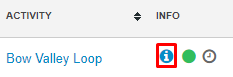
Additional Activity Information: This field will be visible by the customer on the online booking engine as well as on email confirmations.
Ticket Text: This field will only display on Point of Sale tickets.
|
Don't forget to scroll back up to the top of your page and Save when you're done! |
Tips
Creating Point to Point activities will require more time than other types of activities. This is because an activity needs to be created for each departure time and each route. Once you have saved your initial activity, we recommend you duplicate it (button at the top of the screen) and update the following activities with new names, pickup/drop off times, and so on.
Once you have duplicated your original activity, follow these steps:
- Rename your activity.
- Change the Departure Time.
- Change the Pickup and Drop off times for each zone.
- Save changes.
|
It is easier to start by completing all activities in one direction before moving on to the return to complete the schedule. |