We're excited to share the release of our newest feature - Location Services!
 |
This feature is currently exclusive to iPad and is coming soon for Android tablets. Please note that it is not available for iPhone or Android. |
This article will cover the following topics:
- What is Location Services?
- What Is Geofencing?
- How do I Enable Secondary Locations?
- What Reports Can I use?
What is Location Services?
Location Services allows a company to track in which location a sale was made by creating a geofence area and assigning secondary locations within that area. By being able to determine where sales are actually being made, you can determine your most profitable sale locations.
For example, if your street team makes sales in various areas of downtown Vancouver, you can set the areas as secondary locations with your company profile. Your team can then select the secondary location when logged into the Mobile App and the location will filter through to the commission reports.
What is Geofencing?
Think of geofencing as a virtual boundary around a predefined location. When a mobile device enters that boundary, that will trigger an alert or a response based on your location services settings.
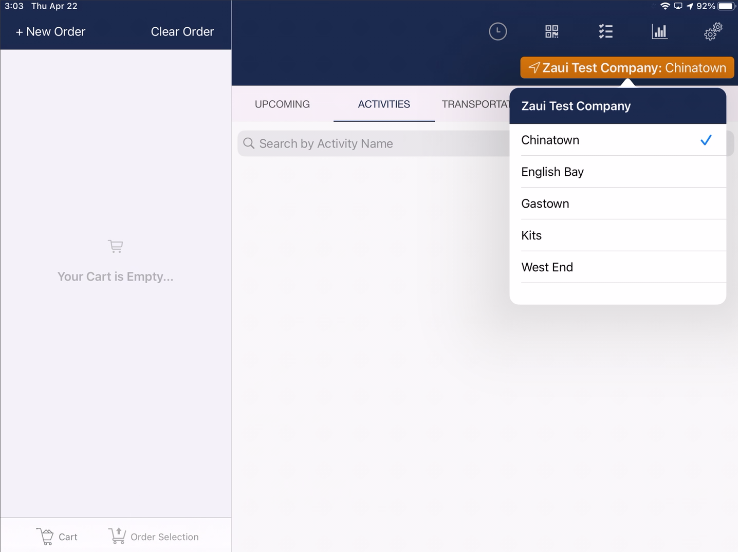
In this example, when a staff member logs into the app and enters the virtual boundary, they will then be able to select a secondary location from a drop-down menu on the Mobile app.
|
The geofencing area needs to be large enough to include all potential secondary locations. If an employee makes a sale outside of the geofencing area, the secondary locations will not appear. |
How do I Enable Secondary Locations?
Only employees of the company can access the Mobile app and secondary locations, this is not applicable to any other company or agents within your system.
- In the Employee profile (Settings > Employees), ensure that the flags for Track commission for employee and Available for Reporting are both enabled
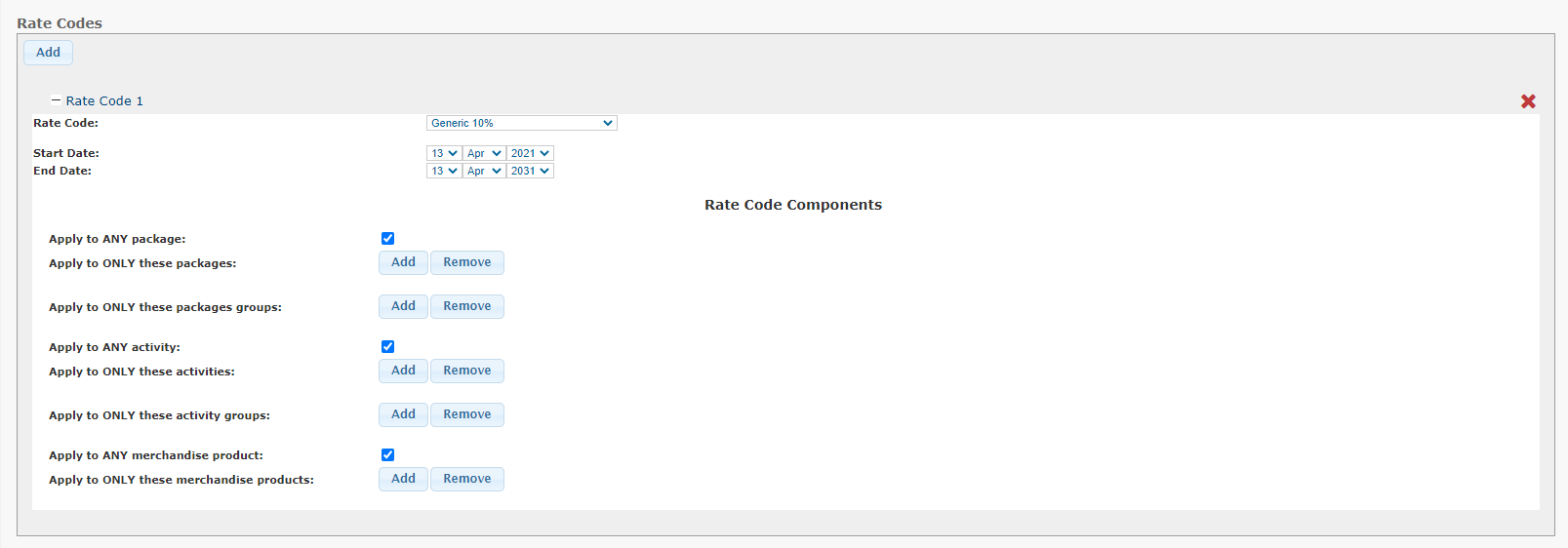
- In your Company profile (Resellers > Company List > Select your company profile), ensure that there is a valid Commission Rate Code & you have either listed the applicable packages, activities and/or products or you have the Apply to ANY flag enabled for at least one component
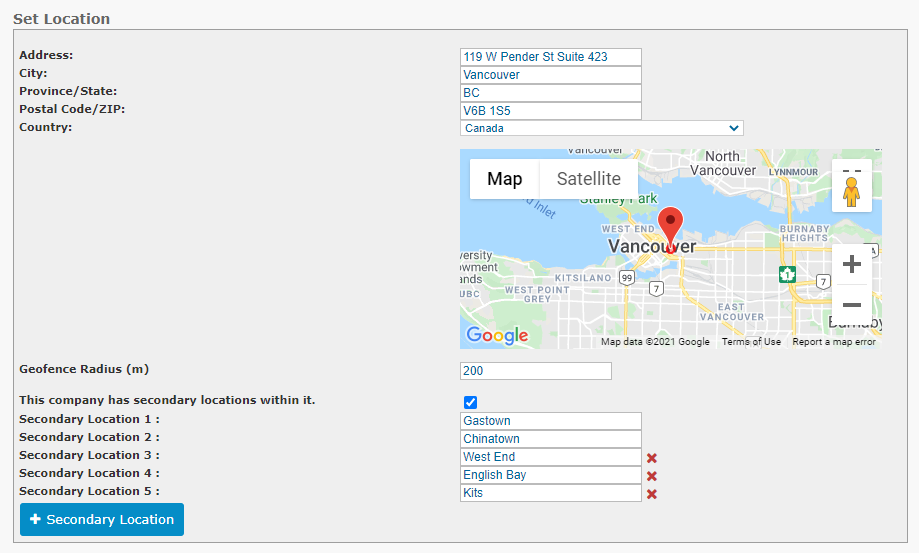
- In the Set Location section, ensure the pin is in the approximate center area of where your staff will be. You then need to ensure the Geofence Radius is large enough to cover all of the secondary locations that you wish to enable. This is an important step since locations outside of this zone will not appear on the list.
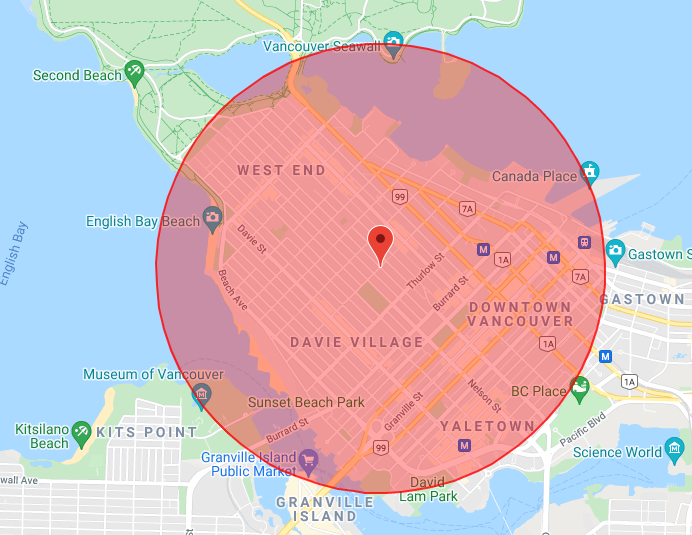
Once you have your Geofence Radius set, enable the flag for This company has secondary locations within it.
- Once enabled, you can then enter all of your secondary locations. There's no limit on the number of secondary locations your company can have.
- As soon as your secondary locations are entered, make sure you Save
- On your iPad, you will need to give the Mobile app permission to use your location. To do this, click on the Settings icon > Scroll down until you see Privacy > On the right side of the screen, click on Location Services > Scroll down until you see Zaui Mobile & click to edit the permissions > You can either select While Using the App or Always, both will work for secondary locations to appear
- Now, when you open Zaui Mobile & log in, you should see the orange bar in the top righthand corner. If you press on the bar, it will open the list of secondary locations
|
When you are testing or playing with the feature, you need to make sure that the pin on the map in your company profile is set to your location or you are within the radius. If you are not within that radius, the secondary locations will not show up. |
What Reports Can I Use?
All of the commission reports will now have an additional column for the booking location.
- Reports > Commissions > By Agent > Detailed By Agent Report
- Reports > Commissions > By Agent > Summary By Agent Report
- Reports > Commissions > By Agent > Detailed By Company Report
- Reports > Commissions > By Agent > Summary By Company Report
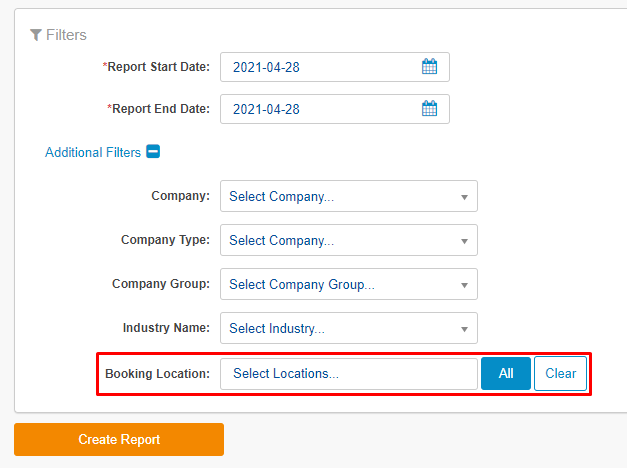
You can also choose to only report on a specific secondary location by selecting the desired location from the Booking Location dropdown menu: