Assigning Equipment from the Staff Schedule
- Once your Equipment is created, select Activities > Scheduling Tools > Staff Schedule.
- Select either a Single Date or Multiple Dates you wish to assign your equipment to.
- Click on the
 icon next to the relevant activity to assign your newly created equipment.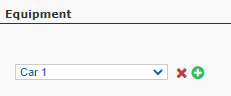
- Click on Process to save this configuration.
Managing Bookings from your Manifest
Passenger Assignment Manifest
If you are offering a tour where multiple pieces of equipment are assigned, you can choose which customers to put onto which piece of equipment directly from your manifest.
- First, ensure you have assigned your equipment either when you created your activity, or manually (check out this article to learn about manual equipment assignment).
- Once bookings are made on your tour, click on the manifest
 button on your main dashboard to open up that particular manifest.
 - Any booking where two or more pieces of equipment have been allocated will have those pieces of equipment display on the manifest.
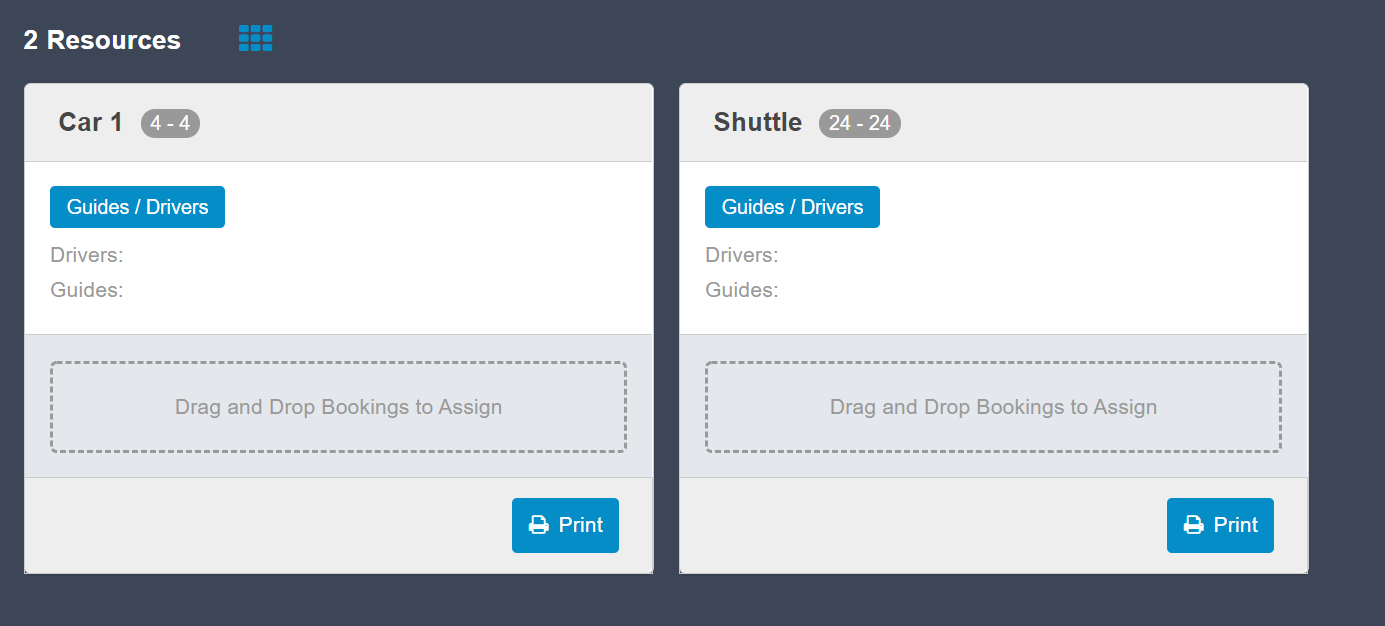
- From the manifest, you can simply drag and drop each individual reservation onto the desired piece of equipment.
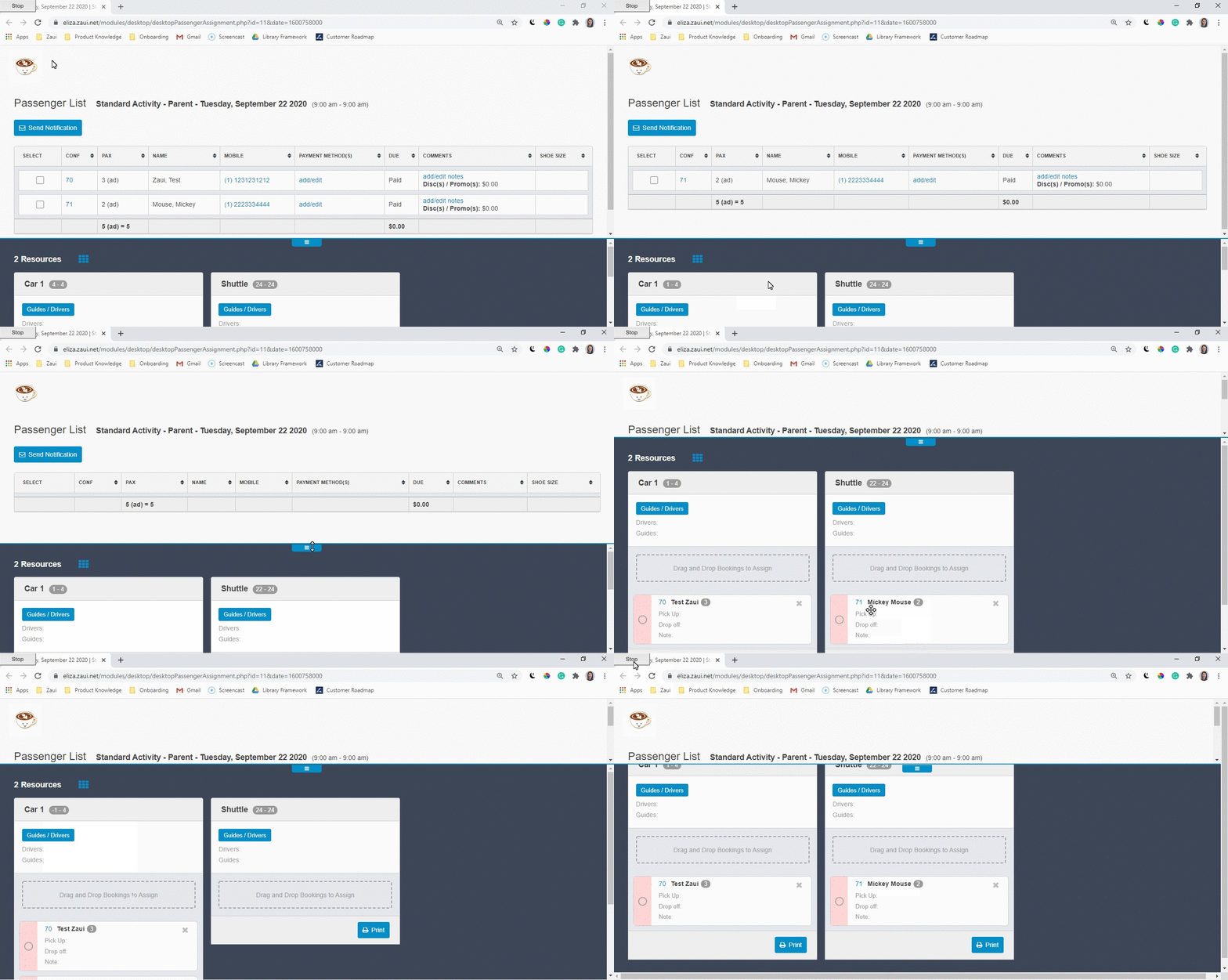
- From here you can also click on Guide/Drivers and assign any of your Guides/Drivers that have been assigned to the tour onto each piece of equipment.
Resource Assignment Manifest
There is also a stand-alone manifest tool that can be used to manage bookings across various equipment and tours. The Resource Assignment Manifest can be accessed from Activities > Scheduling Tools.
Say, for example, you need to organize pickups for your customers to bring them to a central location where they then board their allocated bus for their tour. The Resource Assignment Manifest can be used to organize pickups according to similar pickup locations as the tool does not interact with equipment/passenger assignments on particular tours.
To use this manifest:
- Navigate to Activities > Scheduling Tools > Resource Assignment Manifest.
- Add Equipment/Resources in the lower section of the page.
- Drag and drop bookings from the top section to the resources you have added in the lower section.
- Assign Guides/Drivers to the resources as required. Send the manifest by email to the assigned guides/drivers using the Notify button.
- View or print the manifest for each resource by clicking the Print button.

 The resource assignment manifest follows the same format as your Entire Day Manifest. Add/remove information using Manage Manifest and selecting the Entire Day Manifest to update.
Bookings assigned to equipment on the Resource Assignment Manifest have no impact on the equipment that is assigned to the tour. The tool is for stand-alone equipment allocation.
There is no need to Save. As you assign bookings to resources, information is stored and updated in real-time and will be visible each time you open the Resource Assignment Manifest.