Zaui's Resource Assignment tool centralizes equipment and staff management to ensure operational accuracy. By linking specific vehicles and drivers to activities, the system provides real-time oversight of seat capacity to prevent overbooking.
Key Capabilities
Multi-Resource Allocation: Assign multiple vehicles or pieces of equipment to a single activity.
Schedule Replication: Copy assignment settings across various time slots or bulk-replicate schedules across multiple dates.
Inventory Control: Automate capacity limits based on assigned resources to maintain consistent booking accuracy.
This tool reduces manual data entry and streamlines logistics by providing a standardized workflow for complex inventory management.
This article covers the following:
- What activity types can I apply Resource Assignments to
- Getting Started
- Duplicating settings
- Resource Assignment Dashboard
What activity types can I use?
Resource Assignment can be used with the following activities where equipment is assigned:
- Transportation
- Activity / Custom
- Rental (Both passenger and equipment-based)
- Ticket
- Interval
| This article focuses on Resource Assignment for Transportation activities |
Getting Started
In order to begin assigning resources, a schedule needs to be created.
To create a schedule for your desired activity:
- Go to Settings > Scheduling Tools > Resource Assignment
- Click the SCHEDULE button in the top right corner.
- Select the activity you would like to allocate equipment to. You can type any part of the activity name in the search to help filter the results.
- Select the date to apply the equipment to
- Select the time to apply the equipment to. The options available will be based on the activity start time for the date selected.
- The system will generate the pickup locations for your chosen activity.
You can now select the equipment and driver you want to allocate to this part of the route.
- Be sure to save any changes.
Duplicating Settings
Copying Equipment/Employees to subsequent locations
In order to be able to duplicate your selected options to additional locations, users are required to click Save.
Users can duplicate Equipment and Drivers to subsequent locations using the icon next to selected Equipment and Employees.
Clicking the icon will open a menu with the following options:
Include Employees/Vehicles: Click the toggle to copy over both Equipment and Employees. If unselected, only the section selected will copy over to the subsequent locations.
Copy This Equipment/Employee To:
Next Location: This option will only copy over the selected options to the next location.
All Locations: This option will copy selected options to ALL locations for this activity.
Until Location [Please Select]: This option will copy the selected options until it reaches the selected stop and will not copy the selected options beyond the chosen stop.
| Copying over equipment and/or drivers to other locations will override all assignments (Equipment and Employees) within your matching criteria and will show you the number of assignments that will be overwritten. Refer to the image below. |
Duplicating Schedule to Other Dates/Times
In addition to the ability to copy Equipment/Drivers to subsequent locations, users can copy the entire schedule to apply to other dates and times.
To duplicate a schedule, select Duplicate in the top right corner
A pop-up will appear asking you to select a date range. The calendar will allow you to select the start and end date of your range.
Selected times will only show available start times for your activity.
Once you have selected your dates and times click OK to copy the allocation settings to all other date/time ranges selected
| If you do not have a schedule created for today, you may not see any activities on the dashboard. Scrolling down will load any future activities. |
Resetting Changes
The reset option allows users to undo changes made to an existing schedule.
Users can Reset to saved which will remove any changes made after the last time the schedule was saved, or Reset to empty which will clear all data from all fields.
Resource Assignment Dashboard
Equipment and Employee Assignment
By default, the dashboard will show schedules created that are running today only.
To view activities for proceeding days, scroll down.
You will see this loading icon below.
| If you do not have a schedule created for today, you may not see any activities on the dashboard. Scrolling down will load any future activities. |
Once the system has loaded you should see all your scheduled activities
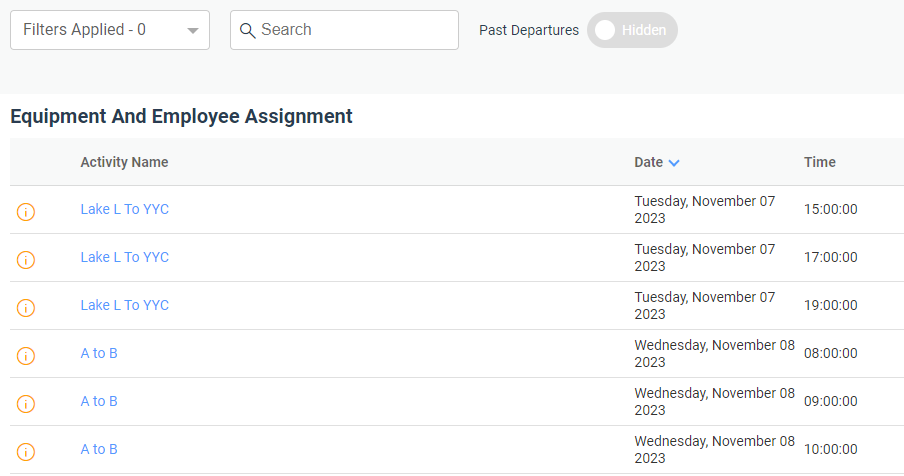
Missing Information
The icon will indicate that the schedule created does not have any Equipment and/or Drivers assigned.
Search and Filters
Search
With the search feature at the top of the dashboard, you are able to search for any detail to help you narrow down your results. For example, you can search by employee first name, last name, equipment name, or any part of the activity name. The results will populate as you type.
Past Departures
The Past Departures button will allow you to see any activities you have scheduled prior to today
Filters
The filters feature allows you to narrow down your search criteria.
Multiple filters can by applied at once by clicking Add Filter
Users can filter based on the following:
-
Activities
Users can select if the activity is one of or is not one of followed by an activity from the list of valid activities (The system will not show expired, archived or deleted activities) -
Activity Categories
Users can select if the activity category is one of or is not one of followed by an activity category from the list of valid Activity Categories (The system will not show expired, archived or deleted activity categories) -
Activity Supplier
Users can select if the supplier is one of or is not one of followed by a selection from the list of Suppliers
This list pulls from the Supplier field found in Activity Settings → Advanced Settings → Supplier -
Dates
Users can select a specific date by selecting Equals or a range by selecting Is Between -
Time
Users can select a specific time by selecting Equals or a range by selecting Is Between -
Activity Time
Users can select if the activity start time is one of or is not one of followed by a start time
Users can also select a start time that falls within a range by selecting is between and choosing the range -
Equipment
Users can select equipment based on the following criteria All, Assigned or Unassigned
List of equipment does not include deactivated, archived or deleted equipment -
Employees
Users can select employees based on the following criteria All, Assigned or Unassigned
List of employees does not include deactivated, archived or deleted equipment