Overview
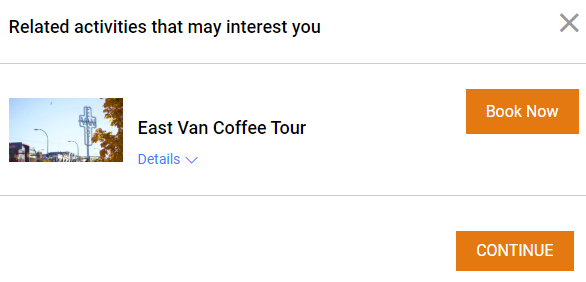
Linked Activities are a great way to create combos and cross-sell different activities. For example, if a customer purchases an activity, they are then offered a different linked activity as an up-sell option at a reduced price.
You can also use Linked Activities to upsell/cross-sell other tours you are offering at a regular price (for extra exposure!).
This article will cover the following topics:
How to create Linked Activities
In order to link activities, first ensure you have created all of your activities.
Make sure you create a separate activity if it will be used as a Linked Activity. For example, you will have an activity for your tour at your standard rate, and a separate activity for that same tour at a discounted rate. The separate activity is the one that will be linked to the original activity.
Once created, follow these steps to link the activities.
- From the navigation bar, select Activities > Activity List and select the activity you wish to add a Linked Activity to.
- On the main activity set-up page, select Additional Settings and click on the Add button in the Additional Activities Available on this Activity/Tour section.
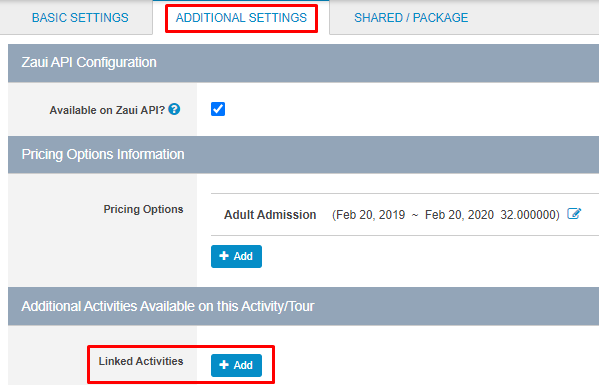
- Select the activity you wish to link.
- Scroll back to the top of the page and click Save.
Where are Linked Activities displayed in the booking process?
Zaui Core (Back Office)
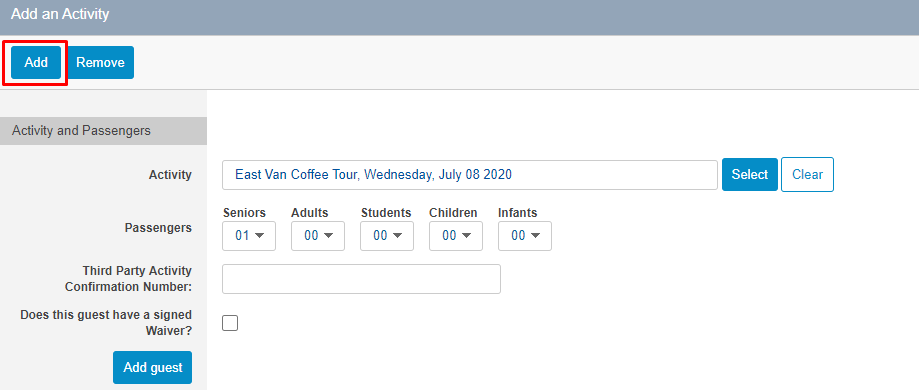
In Zaui Core (Back Office), you will want to add linked activities just like any additional activity you would add during the booking process.
Online Booking Engine
On the online booking engine, linked activities will display as a pop-up after the customer makes a selection for their first activity. The customer has the option to add it on or to continue with their original selection.