Overview
Different companies that use Zaui can connect and cross-sell activities effortlessly. A Reseller will sell tours that a Supplier provides them access to.
This article will cover the following topics from the Supplier's perspective:
Reseller and Supplier
| Reseller | A company selling tours on behalf of the supplier. Adheres to the supplier's rules and restrictions. |
| Supplier | The company hosting the tour that the reseller sells. The supplier controls rules and restrictions for the reseller. |
 |
If you're looking for setup instructions for the reseller, check out this article. |
How to Enable a Partner Connection
- From the navigation bar, select Resellers > Companies > Company List.
- Click on Create Company and follow instructions in Step 2 of this article for more information on creating a new reseller company before continuing below.
- The reseller company you are creating must be set up as a Wholesale type.
The next step to becoming a supplier for Zaui systems in your community is to enable your partners as resellers in the Channel Manager.
- From the navigation bar, select Resellers > Channel Partners.
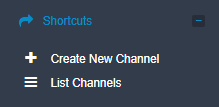
- Select Create New Channel from the shortcuts panel.
The following Channel Information is required:
- Channel Name, which is the name of the reseller company for your system reference only.
- Zaui 2 Zaui Remote Domain Name, which is the Reseller system URL
(ie - partnercompany.zaui.net).
The subdomain is not required in this field (example: ....zaui.net/location) - Map reseller to account is where you select the Company that was created for this reseller. The company linked here will be linked to the voucher transaction for payments on any automated bookings and will be able to be reported on using the Invoice/Wholesale Reports.
The following Channel Information is optional:
- Enabled Channel allows you to turn the channel on and off.
- Enable Alerts will enable notifications of bookings through the channel.
- Send Alerts to this Email is where you can enter the email address if you wish to be alerted when the reseller books one of your supplied tours; you can enter multiple email addresses separated by a comma.

Channel Partner Rules and Controls
The channel partner rules for Zaui Connect are very similar to those used for Viator and other global re-sellers (OTAs). Once the New Channel Manager is set up and enabled, your reseller will be able to sell your activities directly through their system.
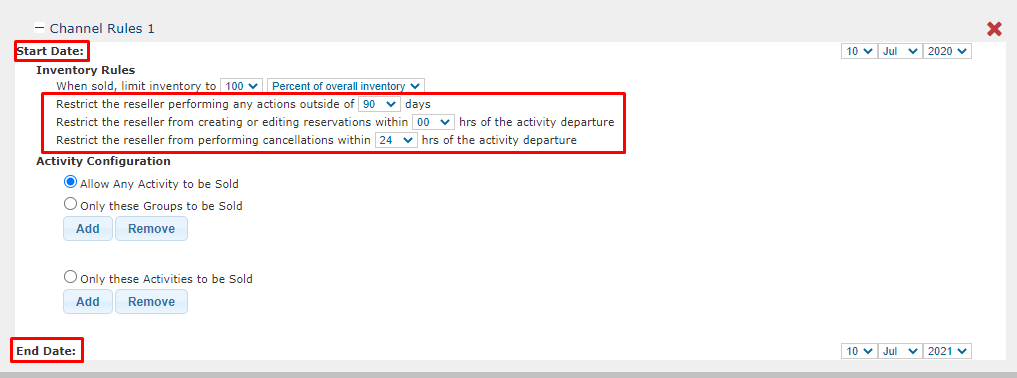
You may limit what/how much the reseller is able to sell under Channel Rules and Controls:
- Set a Start and End Date for your rule.
- Select how many days into the future you wish the reseller to be able to sell your activities.
- Select how close to the activity date a reseller can create, edit or request a cancellation. You have the ability to specify how far in advance your connected resellers may access and sell activities on your behalf, as well as how near to the booking date they can request a change or cancellation.
- Select the amount of inventory you'd like to allow the reseller to sell on your behalf. This can be either as a number of spots, or a percentage of inventory.
- Select any activity, specific activities, or activity groups to which this rule applies.
- Add any additional rules.
- Don't forget to Save.
|
If the reseller requests a cancellation outside of the threshold, the voucher will be refunded and the booking cancelled. If the cancellation is requested within the threshold, the booking will not be cancelled and the reseller will receive an error message indicating that the booking could not be cancelled. |
Supplier Troubleshooting
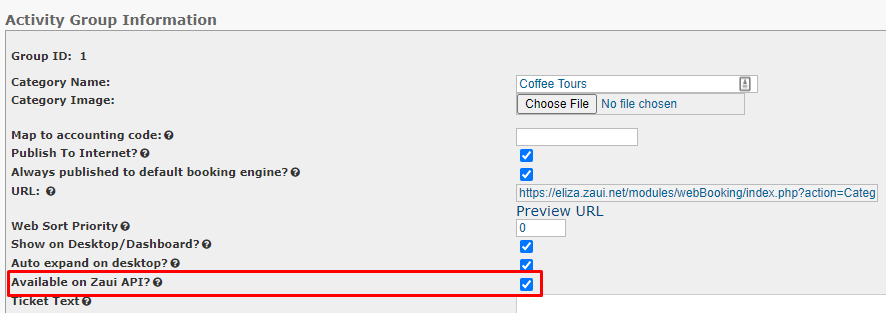
- Ensure you have enabled the API flag on the Category set-up page.
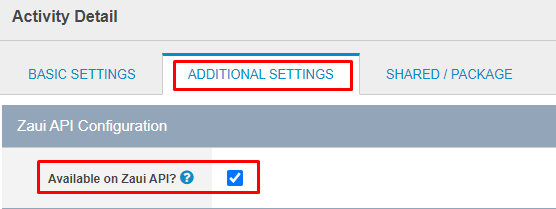
- Ensure you have enabled the API flag on the specific Activity set-up page, under Additional Settings.
- When creating your Channel Rules, ensure you have included an End Date and that it has not expired.