Overview
Different companies that use Zaui can connect and cross-sell activities effortlessly. A Reseller will sell tours that a Supplier provides them access to.
This article will cover the following topics from the Reseller's perspective:
- Resellers and Suppliers
- How to Create a Reseller Connection
- Mapping Tours from Supplier
- Reseller Troubleshooting
 |
Make sure you check out this Video Tutorial on Wholesalers. |
Reseller and Supplier
| Reseller | A company selling tours on behalf of the supplier. Adheres to the supplier's rules and restrictions. |
| Supplier | The company hosting the tour that the reseller sells. The supplier controls rules and restrictions for the reseller. |
|
If you're looking for set-up instructions for the supplier, check out this article. |
How to Create a Reseller Connection
- From the navigation bar, select Resellers > Companies > Company List.
- Click on Create Company from the shortcuts panel.
- Enter the Supplier's Company Name and any other optional information you choose to fill in.
- Scroll down to Remote Supplier Connections Details.
- If the Supplier Uses Zaui:
- The System Type will be Zaui Connect.
- Enter the supplier's Zaui Domain without .zaui.net. For example, if their system is sightseeingtours.zaui.net, you would enter sightseeingtours.
- If their system has multiple locations, enter the location to which you are connecting. For example, if they have sightseeingtours.zaui.net/london and sightseeingtours.zaui.net/paris, you may enter either London or Paris in the location field. If the company does not have different Zaui systems per location, leave this field blank.

- Once the information is complete and correct, Save all changes.
- If the Supplier uses another system:
-
- If the company you are connecting to is using Blue Sky, for example, the System Type will be Blue Sky Booking.

- The API Endpoint will be the system's full URL followed by /api/supplier. For example https://sightseeingtours.blueskybooking.com/api/supplier.
- The API Key and Reseller ID will be provided to you by the supplier.
- The Supplier ID will always be 2000075.
- If the company you are connecting to is using Blue Sky, for example, the System Type will be Blue Sky Booking.
-
- Under Rate Type, select Wholesale (Discount/Invoice).
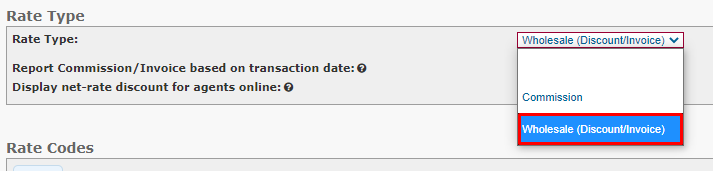
- Report Commission/Invoice based on transaction date means all net discounts will be recorded by transaction date instead of activity date on invoice reports.
- Display net rate discount for agents online means the net rate will be displayed at check-out when agents are logged in for online bookings.
- Once the information is complete and correct, Save all changes.
Mapping Tours to the Supplier
Before continuing, make sure that your supplier has created a connection on their end. Check out this article for more details. Once the supplier has added the reseller as a Channel Partner, follow these steps:
- From the navigation bar, select Activities > Activity List.
- Click on Add Zaui Connect Activity from the shortcuts panel.
- Select your desired partner from the list of suppliers. (If the supplier you wish to connect with is not listed, create them by going to Resellers > Companies > Company List and select + Create Company).
- Select Browse Supplier to continue.
- You will get a list of all the activities that the supplier has shared with you. To pull an activity into your system, select the Activity Name from the list and then click on Create in the pop-up window.
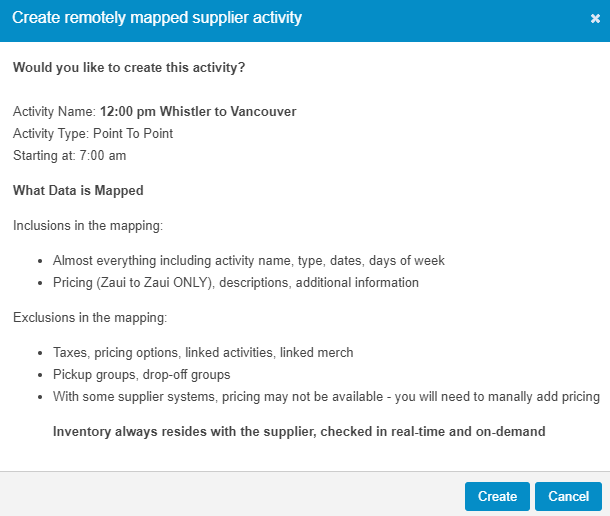
- While most of the data is mapped to your activity, there are exclusions to the mapping. The items that will be excluded are images, taxes, pricing options, linked activities, linked products, pickup and drop-offs.
- From the activity screen, you are able to make changes to the activity information and save, excluding inventory. Inventory can only be controlled via the supplier.
- An activity category is automatically created when remote activities are first mapped, with the format "[Remote supplier name] (Remote Supplier) Activities". We recommend renaming or moving the mapped activities to another category.
- Congrats! You are now able to sell this activity through the Zaui Core (Back Office) and online directly from your suppliers' system!
Reseller Troubleshooting
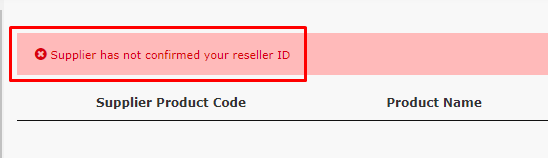
If you get the above error message when trying to map to the supplier tours, we recommend you contact your supplier to ensure they have set up the connection successfully on their side. Check out this article on steps to set up a reseller connection from the supplier's perspective.
If you need to resync a mapped activity, for example in the case of a price change, please note that any non-mapped items will be reset and will need to be added to the activty again. Additionaly, the activity will reset to the the default category.
If you updated the activity description or formatting, this will also be reset during a resync. If you have made extensive updates after mapping the activity, we recommend first creating a copy of the activity before resyncing so you can refer to it afterwards. Delete the copied activity when you are done.