Overview
For Transportation companies who are selling Point to Point activities, you will need to start by setting up your Cities/Towns, Zones and Pick-up Locations.
This article will cover the following topics:
Key Terminology
|
Setting |
Definition |
|---|---|
| Cities/Towns |
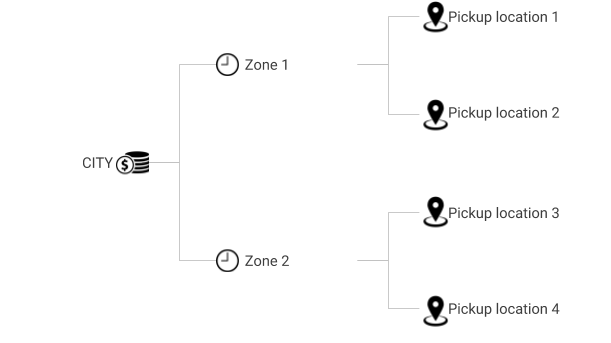
Defined as the point between which your price is calculated. For example, if you have pricing between Vancouver and Vancouver Airport, Vancouver Airport would need to be configured as a city in your system. An example would be Vancouver. |
| Zones |
Used to group pick-up locations that have similar pick-up times. A zone is required for a pick-up location to be created. Note that zones are not visible to customers during the booking process. An example would be Downtown Hotels. |
| Pick-up Locations |
Refers to a specific pick-up and drop-off location. These belong within a city and a zone. An example would be the Marriott Hotel Downtown. |
Creating Cities/Towns
- From the navigation bar, select Settings > Locations > Cities
- Click on Create a City/Town from the shortcuts panel.
- Enter the Name.
- Province/State and Country are optional fields.
- Click Save.
- The Display this location for Online Point to Point Bookings box is automatically ticked. If you uncheck that setting, the cities/towns you created will not appear on your search engine for online bookings. For example, if some of your locations are not used year-round, you can remove them, and then re-publish them seasonally.
Creating Zones
- From the navigation bar, select Settings > Locations > Zones.
- Click on Create Zone from the shortcuts panel.
- Enter the zone Name.
- Setting a Colour is a great tool to help drivers/guides visually see all pick-ups they have in a particular zone.
- If configured, the Override pick-up message with the field will override the system-generated pick-up messages that show on the clients' itinerary.
- Click Save.
Creating Pick-up Locations
 |
Pick-up Locations can only be assigned to ONE City/Town and ONE Zone |
- From the navigation bar, select Settings > Locations > Pick-up & Drop-off Locations.
- Click on Create Pick-up Location from the shortcuts panel.
- Enter the pick-up location Name.
- Select a Pick-up Zone previously created.
- Select a City/Town previously created.
- Fill in the Address of the pick-up location to ensure your customer will be at the right location.
- Display this location on Point to Point Capacity Report is automatically ticked, but can be removed if you don't want this location to show on your report. This report is accessible from the home page and calculates the vehicle capacity between stops along a route.
- Display required pick-up/drop-off address on online bookings is for residential pick-ups, a free form box will display on the online booking engine for people to type in their address.
- Location-specific comments or notes will display on email confirmations as well as on the online booking engine. An example of this would be 'Please wait outside of the West entrance'.
Enable This location as an Airport
If this pick-up location is an airport, by turning on the This location is an Airport flag, you will enable the flight information details on the front-end booking engine.
With this setting, you can set a limit on when your customers can book their shuttle based on their departure or arrival flight times.
For example, if you recommend that customers arrive at the airport 2 hours prior to their flight departure time, you can enforce this policy using this setting. Now, any shuttle on which the customer would arrive at the airport less than 2 hours prior to their flight would be hidden from the search results online. 
-
- If you choose to turn this setting on (by ticking the Enable this location as an Airport checkbox), you will also have to set the flight filter.
- From the navigation bar, select Settings > Company Info and scroll down to the Zaui User Interface Settings section, under Bookings/Reservations.
- Set the threshold for airport pick-ups (arrival flight time) and airport dropoffs (departure flight time).
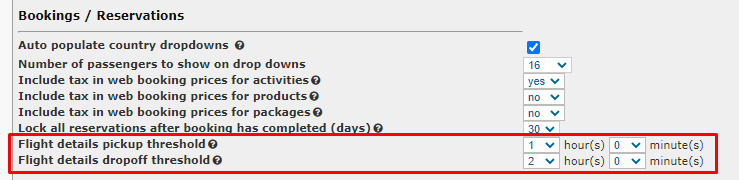
- If any shuttle times fall within this threshold, they will not be displayed as an option from which your customers can choose on the transportation search screen online.